
Easily convert, rotate, and reorder your HEIC files to multiple formats.
Supports: PDF, JPG, PNG, GIF, WEBP, AVIF, TIFF, BMP, ICO
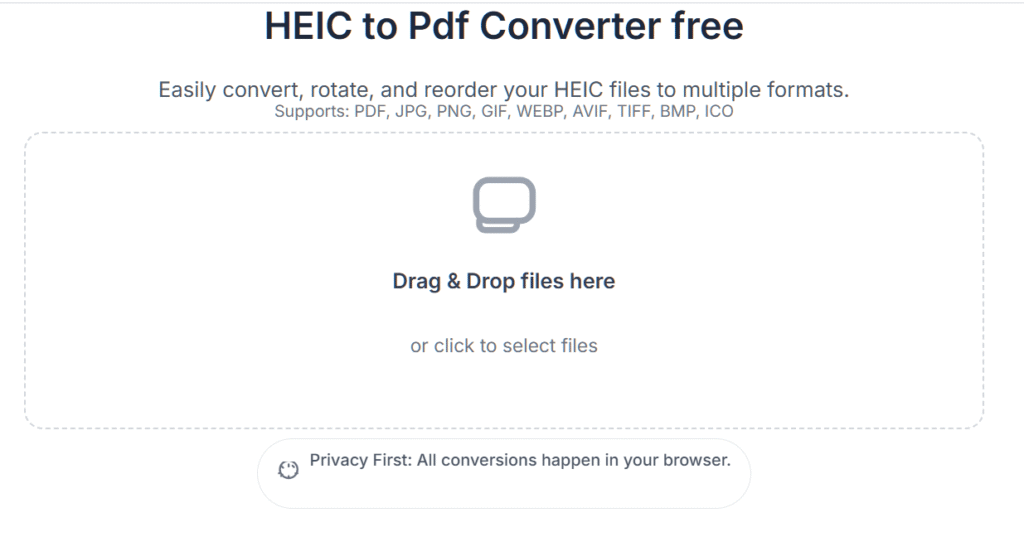
Drag & Drop files here
or click to select files
Privacy First: All conversions happen in your browser.
The Ultimate Guide to Converting HEIC to PDF and Other Formats (Free & Online)
Navigating the world of digital file formats can be tricky, especially when dealing with Apple’s High-Efficiency Image Container (HEIC). While HEIC is an excellent format for saving high-quality photos in smaller file sizes, its compatibility can be a major hurdle. If you’ve ever struggled to open or share a HEIC file, you’re in the right place.
This comprehensive guide will walk you through everything you need to know about converting your HEIC images to universally accepted formats like PDF, JPG, and PNG using a powerful, free, and secure online tool. We’ll cover the process step-by-step, ensuring your precious memories are accessible on any device, anytime.
What is a HEIC File and Why Convert It?
HEIC stands for High-Efficiency Image Container. Since iOS 11, Apple has used it as the default image format on iPhones and iPads. It’s based on the High-Efficiency Video Coding (HEVC) standard and offers two main advantages over the older JPG format:
- Superior Compression: HEIC files can store images at nearly half the size of a JPG with the same, or even better, visual quality. This saves valuable storage space on your device.
- Advanced Features: The HEIC container can store more than just a single image. It can hold image sequences (like Live Photos), transparency, and 16-bit color, compared to JPG’s 8-bit.
However, the biggest drawback is its limited compatibility. Many older devices, software applications (especially on Windows), and websites do not natively support HEIC. This is why converting them to formats like PDF (for documents), JPG (for general web use), or PNG (for images requiring transparency) is often necessary.
A Free, Fast, and Secure Online Solution
Our HEIC to PDF Converter is a robust online tool designed for ease of use without compromising your privacy.
Key Features That Set Us Apart:
- Total Privacy: Your files are never uploaded to a server. All conversions happen directly within your web browser, ensuring your photos remain completely private and secure.
- Batch Conversion: Save time by converting multiple HEIC files at once.
- Wide Format Support: Convert HEIC to PDF, JPG, PNG, GIF, WEBP, AVIF, TIFF, BMP, and even ICO for favicons.
- Advanced Customization: Go beyond simple conversion. You can reorder images, rotate them, and fine-tune the output quality. For PDFs, you can even merge multiple images onto a single page and apply compression.
- Completely Free: No subscriptions, no hidden fees, and no watermarks. Just a straightforward, powerful conversion tool.
Step-by-Step Guide: How to Convert HEIC to PDF
The conversion process is designed to be as intuitive as possible. Let’s walk through it.
Step 1: Upload Your HEIC Files
Begin by opening the converter tool. You have two easy options for uploading your files:
- Drag and Drop: Simply drag your HEIC files from your computer and drop them directly onto the upload area.
- Click to Select: Click anywhere inside the dashed box to open your file explorer and select the images you wish to convert.
Step 2: Organize and Review Your Files
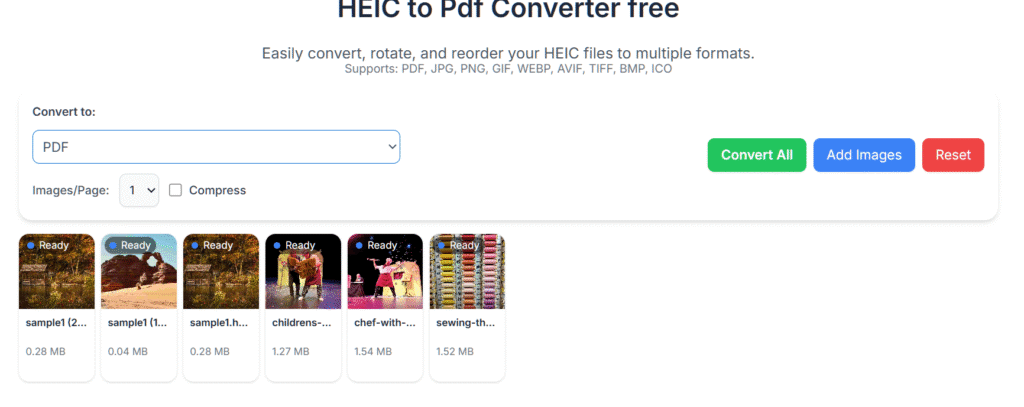
Once uploaded, you’ll see thumbnails for all your images. This is your chance to prepare them for conversion. You can:
- Reorder: Drag and drop the thumbnails to arrange them in the desired sequence for your final document.
- Rotate: Click the rotate button on an image to correct its orientation.
- Delete: Remove any images you uploaded by mistake.
Step 3: Choose Your Desired Output Format
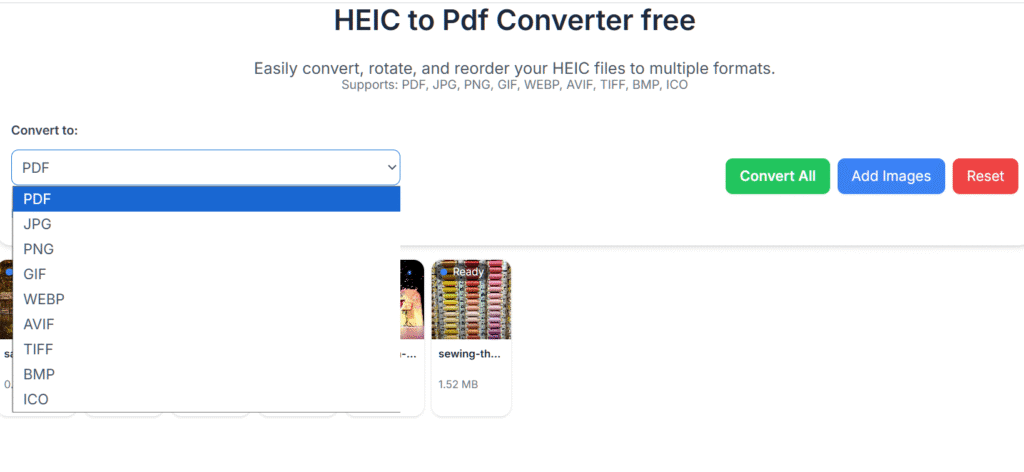
In the top control panel, click the “Convert to” dropdown menu. Here, you can select your target format. While PDF is a popular choice for documents, you have a full range of options for any need.
[Image Suggestion: Insert the image showing the format selection dropdown menu. File: image_130d0e.png]
Step 4: Customize Your PDF Settings (Optional)
If you’ve selected PDF as your output format, you’ll see additional options appear. These powerful features allow you to tailor your document perfectly:
- Images per Page: Choose to have 1, 2, 4, or 6 images arranged on each page of your PDF. This is perfect for creating contact sheets or compact albums.
- Compress: Check this box to reduce the final PDF file size. This is ideal for emailing or when storage space is a concern.
Step 5: Convert and Download Your File
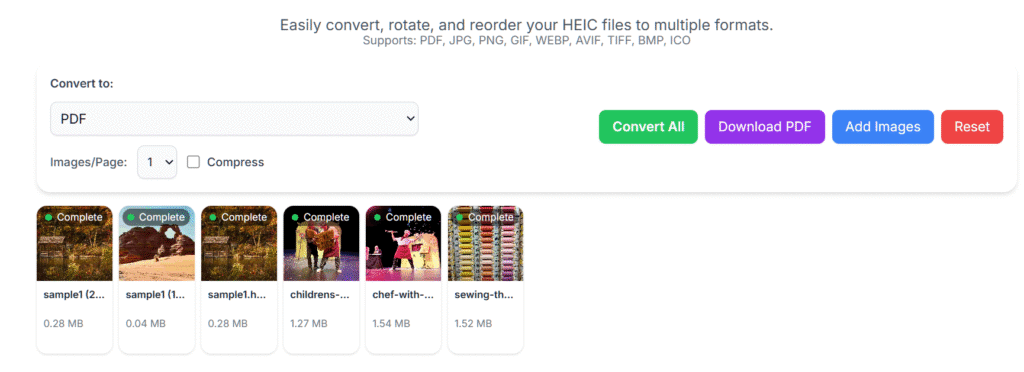
With all your settings in place, click the green “Convert All” button. The tool will process your files right in the browser. The status on each thumbnail will change from “Ready” to “Complete.”
Once finished, a purple “Download PDF” (or “Download All” for other formats) button will appear. Click it to save your newly converted file to your computer!
Frequently Asked Questions (FAQ)
Q: Is it safe to use an online HEIC converter?
A: Yes, provided you use a tool that processes files locally. Our converter performs all operations in your browser, so your private photos are never uploaded to the cloud, guaranteeing their security.
Q: Will I lose quality when converting from HEIC to JPG?
A: All image compression involves some data loss, but our tool uses high-quality conversion settings to minimize any noticeable difference. For the absolute best quality, you can select the “Best” quality option when converting to formats like JPG or WEBP.
Q: Can I convert HEIC files on Windows? A:
Absolutely! Because this tool is web-based, it works on any operating system, including Windows, macOS, and Linux, without needing to install any software.
Q: How do I combine multiple HEIC files into one PDF?
A: Simply upload all the HEIC files you want to include, arrange them in the correct order, select “PDF” as the output format, and click “Convert All.” The tool will automatically merge them into a single PDF document.
Conclusion
So, while HEIC is a fantastic piece of tech for saving space, it can definitely cause a headache when it’s time to share or open your photos on different devices. Don’t let file compatibility issues hold you back. With a reliable and private tool like this one, you can effortlessly switch your HEIC photos to PDF, JPG, or whatever format you need—quickly and for free. Stop wrestling with incompatible files and take back control of your photo library. Give it a try and see how simple it can be!